Thursday, 14 April 2011

Thing 7 - Phoebe

After completing Thing 7
  • You will know what 'Phoebe' is for
  • You will have investigated Phoebe's built-in and user contributed design templates
  • You will have reflected on how useful it could be for you
What is Phoebe?

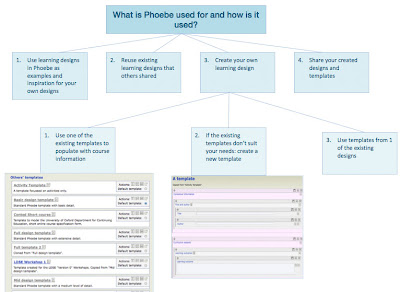
Phoebe is an online tool intended to encourage university teachers to explore new approaches and tools in their pedagogy.  It does this by providing online course design templates, which course designers fill out with the help of accompanying suggestions and examples.

The templates are basically forms, with a series of sections and text boxes into which information concerning aspects of the course is entered.  Each section and text box can have supporting information associated with it and displayed during editing to help the designer.  The built-in templates are mostly about design at the class or lecture level and draw on course design resources developed by the Phoebe team specifically to accompany them, but it is equally straightforward to link to other resources. 

The different templates are provided to suit different kinds of course and levels of detail.  Some are built in, but many have been created and shared by other course designers. 

To make a new course design, you choose an appropriate template, click the 'create new design' button and set about filling in the various text boxes, aided by the prompts and help text.  For this the screen is split in half, with the template on the right side and wiki pages on pedagogic practices on the left. Alternative views are available in case you prefer them to the split-screen layout. 

Phoebe could be helpful on a number of levels.  By requiring a particular set of fields a template can help designers break design problems down in a tractable way, make designs more comparable and explicit, and prompt designers to consider aspects they might have overlooked. 

Created at Oxford University, Phoebe is a prototype and is not being developed any further, but it is still live and usable.  The ideas and benefits of Phoebe could be obtained in a variety of other ways also, but being open source it would be possible to have a version just for Cambridge.


How is it used?

Don't let Phoebe's  overwhelmed by the wordiness of the Phoebe system, once you've understood what it's about, it's really not that hard. This is usually the case with many online systems anyway. Have a look at the video below to get an idea of how Phoebe is used:


Step by step instructions

  1. Visit Phoebe here
  2. So that you can create and save templates and learning designs create an account by clicking on Register/Login at the top of the page and filling out the various fields. You won't be spammed.
  3. Log in
  4. Click on 'Manage your design templates'. You'll see a section called 'Other's templates', which is the list of all the public design templates. Some of them are created by the Oxford Phoebe team, others are made by users and made public. 
  5. Chose one or more templates to try for yourself (you might be interested in 'Cambridge Course handbook').  Click the 'create a design based on this template' button for your favoured template.  You will be asked to give your new design a name and description and then you will be placed in the design environment, complete with support material.
  6. Try out the design editing environment for yourself.  Click the 'click for guidance', 'click for book' and 'click for example' buttons to call up associated help for each field.

Blog Thing 7
  1. What was your initial reaction to the idea of standard template forms with built-in help, as curriculum design tools?
  2. After having tried it yourself,  how did your impressions change?
  3. Which template(s) did you think were useful?  Would you consider creating a template yourself?
  4. If you looked at a new design using the Cambridge Course Handbook template, how well do you think it could the module design process, or to improve the consistency of module information, or both? 
  5. What are your thoughts about using a standard to share Cambridge (or your course) specific templates and designs; as a tool to share your learning designs?

If you're interested
  • Create a new design based on one of the templates and try using it to describe a course you are familiar with. When you're done, make it public and tell us its name in your blog.
  • Create a template yourself: specific to Cambridge or even to your course. When you're done, make it public and tell us its name in your blog.

Friday, 8 April 2011

Halfway hall

Halfway Hall is how students in Cambridge celebrate the mid-point of term, so in that jubilant spirit our most recent meetup marks Thing 7-and-a-half of our 13 curriculum design Things programme. It was great to catch up with six of our busy participants face to face.

Halfway hall in one of the newer colleges? http://www.flickr.com/photos/nico_/2683453892/

This was a informal meetup and the aim was to catch up on each others' thinking about the Things so far, let everyone know what's coming up next, and to get some feedback ourselves the programme so far.

There was a great discussion about the Things so far and how they might work at Cambridge, and we heard many things we haven't seen in the blogs yet, probably, it was suggested, because being able to discuss them face to face is much more stimulating.  If you're reading this and wondering whether to come to the next meetup, this is your notice that the meetups are the most useful bit!

We'll be including this feedback and discussion in our summary of feedback at the end of 13Things.

In terms of the pace of the programme so far not everyone has had time to keep up with two things a week, so we're going to add some extra time at the end so that there's a chance to catch when exam season is behind us.

Keep it up, and we look forward to more fascinating posts!

Thing 6 - BYO

After completing Thing 6
  • You will have shared and described a curriculum design Thing you're using yourself

What do we understand under this 'Bring Your Own' exercise?

During the previous weeks you already got to know 5 Things to do with curriculum design, and we'll introduce you to some more in the coming weeks.
But for this Thing, we're interested in curriculum design Things that YOU are already using.
This could be any kind of tool, system, resource, guide and so on that you're using to help you with your curriculum design.
Just like we've been describing the what and how of the previous Things, we'd be interested to understand what your Thing is about, and how it's being used as well.

What tools do you use to help with curriculum design?

Blog Thing 6
  1. What is your BYO curriculum design Thing that you choose to share with us?
    Describe what sort of Thing it is (tool, resource, guide, system etc), what it aims to do and how it's being used.
  2. How did you find out about this (via a colleague, through training session...)?
  3. Why is it particularly useful for you? What aspects are less useful (for you)?
  4. In what way do you you see it being useful for other course designers?
  5. Add a link / image / upload a version so it's clear what the Thing is and other participants can try it out as well.

If you're interested...

  • Are there more curriculum design tools that you're using? Don't hesitate to add them too!
  • Which of the previous Things you mentioned are most useful in what situation?
  • Do you know any tools that your colleagues are using which are worth mentioning?

Tuesday, 5 April 2011

Thing 5 - Pedagogy Profile

After completing Thing 5
  • You will know what the 'pedagogy profile widget' is all about
  • You will have tried applying it to one of your own courses
  • You'll know whether it can be useful for you

What is the 'Pedagogy profile widget'?

The 'pedagogy profile widget' is another way of visualising the make-up of a course, developed at the Open University. The tool is designed to help instructors analyse their course by collecting its many student activities into seven categories. The time assigned to activities in each category is summed, giving a bar chart which shows the spread of types of activities within the course. The categories are derived from a learning activity taxonomy developed by Prof. GrĂ¡inne Conole at the OU that characterises the types of tasks learners undertake into six types of learning activity, plus assessment:
  • Assimilative: attending and 'understanding' content, such as reading, viewing or listening
  • Information Handling: e.g. gathering and classifying resourcing or manipulating data
  • Communication: dialogic activities, e.g. pair dialogues or group based discussions
  • Productive: Construction of an artefact such as a written essay, new chemical compound, sculpture etc)
  • Experiential: practicing skills in a particular context or undertaking an investigation
  • Adaptive: use of modeling or simulation software
  • Assessment: diagnostic, formative or summative


How is it used?

It's an online system which means you but you can download the results as .jpeg, or print it out. You can also 'save the data' so that next time you visit the URL, the information is still visible in the same way. The aim of the tool is to give course designers a way to assess the balance of activities across different ways of engaging with the material, but also to get an overview of the total time spent engaged in each kind of activity, and to make courses comparable in these terms. It is intended to apply equally to courses in development and established courses.

Step by step instructions

  1. Visit the 'Pedagogy Profile Widget' here
  2. Try it out for your own course, or a part of it, e.g. a single unit or lecture. You could reflect on a single course from some weeks ago, on a whole lesson package from last term, or maybe even on a course or lesson package you're planning to give in the near future as way to assess it before actually lecturing. Each row represents a chunk of your course - you decide what size chunks you want to use, depending on the scale of the course you want to analyse. A Tripos Part might be best broken down by terms, a single lecture by minutes, a module by lectures and labs. You can give your chunks titles by clicking in the appropriate row headers on the left of the table (e.g. lesson 1: xxx). For each chunk you then fill in the amount of time spent in each type of activity. Units are whatever makes sense for you, but hours are often effective. Fill in each of the cells in the matrix. Click 'add' or 'delete' to vary the number of rows. Click update to see the completed profile. Profiles can be printed or saved as .jpegs and uploaded.
  3. Done! Now blog about what you think.


    Examples:


    Could be divided into weeks...


    or in modules...


    or in terms... or in whatever you think suits you best!


Blog Thing 5
  1. What do you think of the idea of 'pedagogy profile widget'?
  2. What do you think of dividing the rows into 'modules', 'terms' and so on; or do you think the original idea of using 'weeks' works best?
  3. How does it compare with any other methods you're using to balance learning aspects across the spread of activities etc?
  4. Filling out your own pedagogy profile, did you find it illuminating or frustrating? Are there any ways you would change it to better reflect what you do?
  5. In what ways do you see this being useful to you as a course designer?
If you're interested...
  • Add the .jpg of your own 'Pedagogy profile' to your blog post (hint: use the 'save as .jpg' button and afterwards upload it to your blog post using the 'image' icon in your blog )
  • Look up 'Pedagogy profile' on Cloudworks (here's a link) and share your response directly with the OULDI team there

Wednesday, 30 March 2011

Thing 4 - Course Map

After completing Thing 4
  • You will know what the 'course map view' is all about
  • You will have tried applying it to one of your own courses
  • You'll know whether it can be useful for you

What is Course Map?

Our friends at OULDI have been developing ways of making learning designs more visually accessible.  The course map view is one of the simplest 'views' and is intended to give an at a glance overview in terms of the types of learning activities the learner is undertaking, how they will communicate and collaborate with tutor and peers, the guidance and support provided and the nature of any assessment.

The four categories have been carefully chosen to capture all the main elements of a course - setting them out in boxes is just a sort of visual mnemonic.  They may seem familiar to you - they're a lot like the headings found in course handbooks, and many instructional training courses use similar categories.

The bottom two boxes are there to help other people identify the course and place it in context.

How is it used?
(cc) http://sha3teely.com/?p=117

If you're developing an idea for a new module, or reviewing an existing one, you could use a course map to create handy overview.  Course maps can be used as a sort of checklist: are all the elements in place?  They're also easy to share.  Being consistent, they can aid comparison - creating course maps for several modules in a larger course can act as an aid to reflection on the whole set.

Check out an example: the University of Reading's third-year Atmospheric Science field course


(c) ReadingLDI

Step by step instructions

  1. Grab a blank sheet of paper and make a course map overview of your own course.  It might help to have a particular audience in mind.  If you like, you can get an editable blank version from Slideshare (account needed) or via CamTools.
  2. You're done!  Just blog what you think.

Blog Thing 4
  1. What do you think of the idea of Course Map?  
  2. How does it compare with any other representations you have of your course?
  3. Filling out your own course map, did you find it illuminating or frustrating?  Are there any ways you would change it to better reflect what you do? 
  4. In what ways do you see this being useful to you as a course designer?

If you're interested..
  • Check out the thinking behind the course map on Prof. GrĂ¡inne Conole's blog e4innovation
  • Add your own course map to your blog post (hint: scan it in, save your PowerPoint file as a picture, or just take a screenshot in Windows or Mac and after that upload the image)
  • Look up 'course map' on Cloudworks (hint: use the search box, or just click here) and share your response directly with the OULDI team there


Monday, 28 March 2011

Thing 3 - the Learning and Teaching Support initiative

After completing Thing 3

You will
  • know what the LTS initiative is
  • have a good idea how its resources, events and networking opportunities can be useful to you

What is LTS?
We asked Alice Benton, head of the Education Section, what LTS is and who it's for:
"It's for everyone! It's for administrators and academics interested in teaching and learning provision. It's our way of trying to disseminate good practice across the University.
LTS lunches often discuss pedagogic concepts

There's the lunches, where we focus on a particular topic people have suggested to us as of interest, so if you have an idea for a topic let us know. The lunches are supposed to be helping networking as well - that's part of the philosophy behind LTS.

The database is a collection of examples of particularly innovative or effective ways that departments tackle particular issues, collected here in the office from periodic teaching reviews, things that have been highlighted by external examiners, and through our annual quality update exercise. There's a form on there for people to nominate examples of good practice, so if people are doing things that they think will be of interest to other people then please do let us know.

The Have You Tried guides - we're particularly keen to work on those - are where we've identified through our own internal quality assurance mechanisms topics that seem to be of particular concern to departments, and we've tried to draw together from our various sources, including the database, examples of how different departments have tackled things. They're exactly what they say - just ideas to try.

Then there's the newsletter as well, which goes out at least once a term, where we follow up on the lunch and we highlight issues that have been discussed in the University or topics that might be of interest to colleagues."
http://www.admin.cam.ac.uk/offices/education/lts/examples/
LTS Ideas and Examples page

A brief tour of the University
It might be helpful to have a picture of how LTS fits in the University. LTS was established by the Education Committee of the General Board (GBEC), the University's central body for educational matters. One of the things GBEC does is create a four-yearly Learning and Teaching Strategy for the University, in which the LTS features. The Education Section is GBEC's secretariat and amongst other things has a general interest in teaching, being responsible for making sure the University's programmes and processes meet the Quality Assurance Agency's requirements for UK higher education programmes.

Step by step instructions

Explore the LTS website

  1. Go to the Education Section's website and click through the link to the LTS pages (or go straight there).  You'll be presented with links to three further pages. Have a look around.
  2. In the Ideas and Examples section, click through "Enter the database". It sounds more ominous than it is; all you you should see is two drop-down selection boxes and a search box. 
  3. Click 'search' without typing anything.  You'll get 71 results - everything in the database! Select an institution or theme from the drop-down selection boxes to narrow them down.   Click through to look at some of the examples in more detail.
Blog Thing 3!
A usual we've got three questions for you, plus a specific one for this tool.
  1. What did you expect from LTS initially?
  2. Having explored the LTS resources, were your expectations borne out or were you surprised? In what ways do you see this being useful for your own curriculum designs?
  3. What would you like to see from the LTS initiative?
  4. How do you think about the model of peer-sourced support for curriculum designers? Is it comparable with other institutions you are familiar with?
If you're interested
There are three things you can do to get more involved with LTS.
  1. If you'd like to be added to the newsletter distribution you can email Katherine.Wallington@admin.cam.ac.uk.
  2. Let Katherine know if there are topics you'd like to see, for LTS lunches or Have You Tried? guides.
  3. Can you think of innovations and particularly effective practice in your own institution which aren't in the LTS database? Examples could be anything to do with teaching and learning, feedback to and from staff and students, assessment, student engagement, policy, organisation or transferable skills. Nominate them for inclusion using the online nomination form.

Tuesday, 22 March 2011

Thing 2 - Cloudworks

I don't like the look of this cloud!

Scott Butner 2008 http://www.flickr.com/photos/rs_butner/2550530346/in/photostream/
Don't worry - Cloudworks is much less oppressive.

After completing Thing 2
  • You will know what Cloudworks is, and what 'clouds' and 'cloudscapes' are.
  • You will have explored the Learning Design Toolbox; a cloudscape of curriculum design ideas and resources.
  • You will have used Cloudworks to look for and evaluate tools, activities and resources that could be useful for your own purposes.

What is Cloudworks?

Cloudworks is a website for teachers in HE to to find and discuss ideas for learning and teaching, and share their own ideas too.

In fact, it's not just for ideas - people also use it to ask questions, share examples of how to do things, and announce events. Every one of these resources gets its own page, or 'cloud'. Anyone can make a cloud - all you have to do is create an account.

Go to the website now, if you haven't already: http://cloudworks.ac.uk/

Tag collections can serve as summaries
Its easy to find interesting clouds by entering keywords in the search box and searching their full text, but you can also browse clouds in several ways. Most clouds are "tagged" with several keywords or short phrases. Click on "tags" in the menu bar at the top of the page to see a complete list of tags. Clicking on one, "curriculum design" for instance, gets you a page listing everything tagged with "curriculum design". In this case you get three lists: 25 clouds, one user profile and several "cloudscapes", which are simply collections of clouds. Just like clouds, anyone can make a cloudscape (by going to the Cloudscapes page), and in this example one of the cloudscapes, called "Designing flexible curricula", is one I made earlier.  You'll notice some of the other cloudscapes have been made for meetings and conferences.

Clouds and Cloudscapes are the main concepts in Cloudworks - once you understand them the rest is pretty self-explanatory.  There is one more notable feature though: Cloudworks is "social".  In practice this means anyone can comment on clouds or respond to other comments, add tags, and even contribute extra material, links and references.  By default, anyone can add clouds to your cloudscapes too, but it's possible to turn this off if you need to.  It's also really easy to 'follow' practically anything in Cloudworks using RSS (new to RSS?), so you can easily keep up with interesting discussions and updates.

Once you've found an interesting cloud, look in the right-hand info pane to see what other tags it has been given and what Cloudscapes it has been included in; maybe they will lead you to other interesting clouds!

Hopefully that's enough to get you started.

Need more Cloudfacts?

Useful tips on what you can use Cloudworks for: http://cloudworks.ac.uk/support/tips

How to make your own cloud or cloudscape: http://cloudworks.ac.uk/cloud/view/2554

Here's a video introduction by Cloudworks' creator:


How do we think Cloudworks might help course designers?

People have posted quite a lot of ideas and discussion on Cloudworks already, all somehow connected to curriculum design - maybe you will find a useful resource or discussion.  You could make an account and 'favorite' some particularly interesting clouds, and you might decide to upload some ideas, examples or questions of your own.

Cloudworks is public and run by the Open University, but it is also an open source software project, which means Cambridge could have its own private version, as a place for lecturers to swap notes on teaching.

Step by step instructions

Explore the Design toolbox
  1. Go to http://cloudworks.ac.uk/
  2. Find the cloudscape called Learning Design Toolbox.  (Hint: use the search box, or click here if you're really stuck).  This is a collection maintained by our friends at the Open University.
  3. Read the description of this cloudscape.
  4. Scroll down to see a list of the clouds in the cloudscape.  In this case the list is rather long so the cloudscape's creator has broken it into categories (activities, methods, resources, templates, tools).  
  5. Look down the list of clouds to about item nine - if you came to our kick-off meeting it should sound familiar!  Click through to and scroll down to "extra content" to see what kinds of lists other people have made (Hint: if you're lost go straight to the "activity: how to ruin a course" cloud).  We've added yours too! 
  6. Go back to the Learning Design Toolbox cloudscape (Hint: click back in your browser or find it listed in the info column on the right).  Scroll down to the "cloudstream" at the bottom.  This is a constantly-updated feed of everything that happens in the clouds forming this cloudscape.  Why not see where the most recent discussion has been?
  7. Click through to some interesting-sounding clouds. Look out for comments and tags.
  8. Now you've got the hang of it, try find at least 3 things on Cloudworks which you might find useful.
Blog Thing 2!
  1. What is your impression of Cloudworks? 
  2. What three things did you choose?  How do you see Cloudworks being useful to you as a curriculum designer, as a place to find resources and ideas about curriculum design?
  3. What are your thoughts about using this to upload your own resources (ideas, tools etc) and getting feedback on them?
  4. Cloudworks is a public site run by the Open University, but it is also an open source software project.  Cambridge could have its own, private version of Cloudworks, for teaching staff to share and discuss ideas just within the University.  How useful do you think such a facility would be ?
Team Friday's ways to ruin a course.  All it takes is one misplaced post-it..

If you're interested

If Cloudworks seems useful, go ahead and explore further.  Are there more clouds and cloudscapes which are useful for you?  Create a user account so you can mark favourite items, post comments on them, and 'follow' what other people are adding and what they are saying.  If you happen across a fellow traveller, you can even follow them personally and see everything they post.  Feel free to create clouds and cloudscapes yourself - do add them to the "13 Things" cloudscape so we can find you.